
How-to
Participant Documents: Checking Who Can Actually See What
A quick guide to document visibility in Sparks Provider: who sees uploaded participant files, what rostered staff see instead, and how to check your setup.

Kim MatthewsFounder and disability support provider
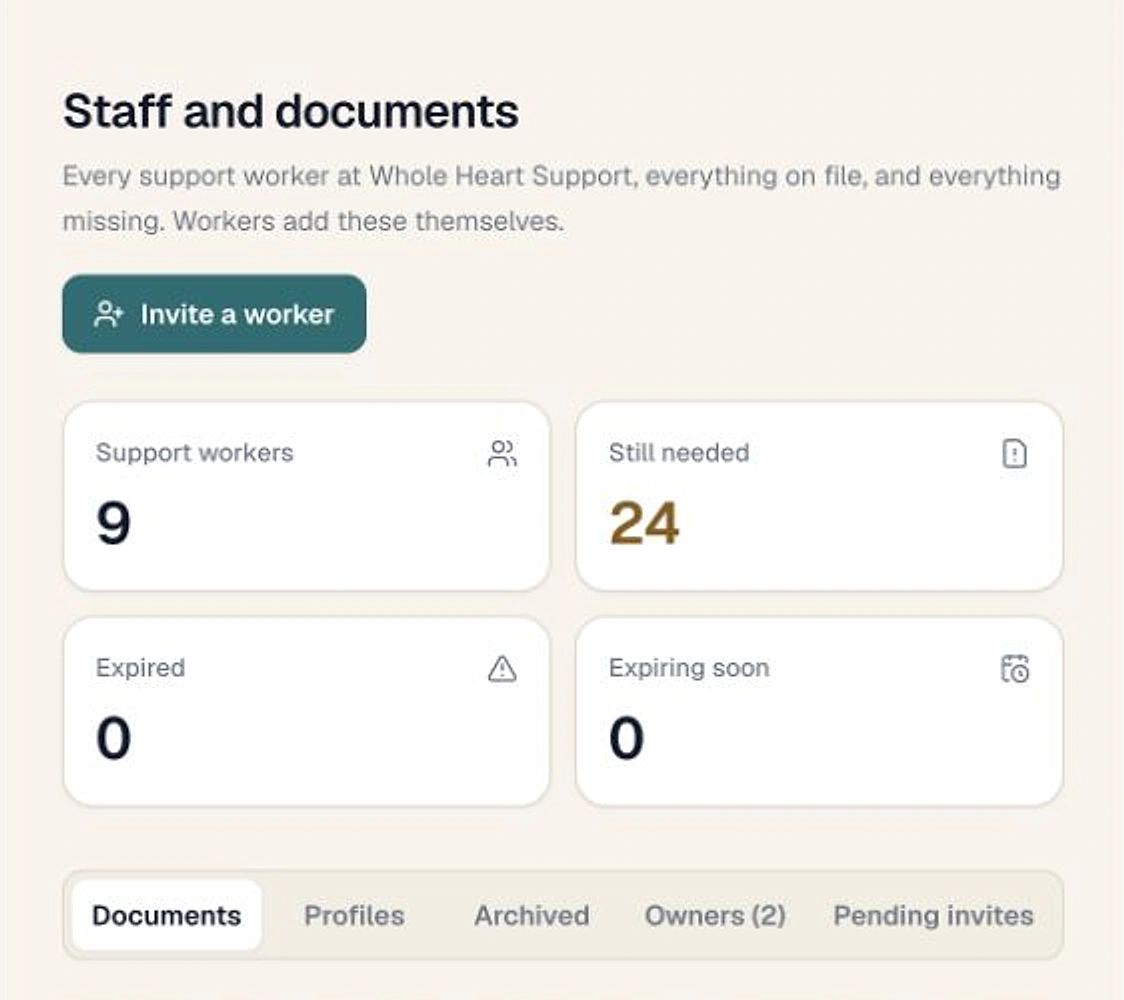
Short answer first: uploaded participant documents in Sparks Provider are only available to your business owners and administrators. If you are wondering whether a support worker can open a plan, a consent form or a signed service agreement from their own account, they cannot, regardless of what shifts they are rostered to.
Who actually sees uploaded documents
Owners and administrators have identical access to the Documents area under each participant's profile. That means anyone with owner or admin status in your business can add a document, open it to view or download it, or remove it. There is no separate tier between owner and admin for this feature, and there is no setting that extends document access to rostered staff.
What rostered staff can see instead
This is the part that trips people up, because it sits close to Documents without being the same thing. Under Shifts and access, you control which participant profile fields a staff member can see when they are rostered to that participant's shift. That might include things like address details or support notes relevant to the visit. It is a useful setting, but it is answering a different question. Turning on more profile field visibility for a worker does not give them a key to the Documents tab.
- Owners and admins: full access to add, view and remove uploaded documents
- Rostered staff: see the profile fields you've chosen under Shifts and access, not uploaded files
- Signed service agreements and consents: kept in Documents, viewable only by owners and admins
A fictional example
Picture a fictional, anonymous small provider with one admin and four support workers. The admin uploads a current behaviour support plan for a participant and sets a review date. A support worker rostered to that participant's shift later asks why they can't see the plan from their phone during a visit. The answer is by design: the plan sits in Documents, which is owner and admin only. If the worker needs specific details from that plan during a shift, those details need to be added to the profile fields the worker can already see, not solved by opening document access more broadly.
How to check your own setup
If you want to confirm what is currently visible to whom, it only takes a few minutes.
- Open a participant's profile and go to Documents to see everything currently on file, including anything marked Review soon
- Check Shifts and access for that participant to see which profile fields are switched on for rostered staff
- Compare the two lists side by side so you know exactly what a worker sees on a rostered shift versus what sits in Documents
- Remove any document that should no longer be kept. Sparks Provider asks before removing, and the file goes with it
Keeping signed agreements separate
When a participant or their representative signs a service agreement online, the signed PDF lands in Documents under On file, marked Signed online, the next time an owner or admin opens that tab. It is kept exactly as signed and cannot be edited or removed. If an agreement was signed on paper or somewhere else, choose Service agreement when adding a document, or use Upload an agreement signed elsewhere under the participant's Agreements, so it sits in the same place as everything else.
The takeaway
Document visibility and shift field visibility are two separate settings doing two separate jobs. Documents stay with owners and admins. Shifts and access decides what a rostered worker sees for the visit in front of them. Checking both, rather than assuming one covers the other, is the quickest way to know your participant records are visible to the right people and no one else.
Common questions
The details people ask next.
Can I give one support worker access to Documents without making them an admin?
No. Document access in Sparks Provider is tied to owner or admin status. There is no partial or worker-level permission for the Documents area.
If I remove a document, can I get it back?
No. Sparks Provider asks for confirmation before removing a document, and once removed the file is gone. Download anything you might need to keep before removing it.
Does increasing a worker's visible profile fields ever expose uploaded documents?
No. Shifts and access controls profile fields only. It has no effect on who can open the Documents tab.
Where do signed service agreements show up?
Under the participant's Documents, in the On file section, marked Signed online. They are kept exactly as signed and cannot be changed or removed.
This article is general information about provider operations and Sparks Provider. It is not legal, financial, employment, NDIS or compliance advice. Check current requirements with the relevant authority or an adviser for your business.