
How-to
One Client Doesn't Want Texts: How to Turn Off Their SMS Reminders Without Losing Their History
A participant asked to stop getting texts. Here is how to record that preference in Sparks Provider without deleting their number or message history.
Kim MatthewsFounder and disability support provider
A participant tells you they do not want text reminders anymore. You do not need to delete their phone number or scrub their file to honour that. Sparks Provider has a dedicated setting for exactly this: a per-participant opt-out that stops texts while leaving everything else in place.
This matters because SMS reminders in Sparks Provider are optional, purchased separately as SMS credits, and sent from a number called SPARKSPROV. That number is send-only, so a participant replying STOP does nothing on its own. The opt-out has to be set in the app.
Where to turn it off
- This setting lives in the browser version of Sparks Provider, at app.sparksprovider.app.
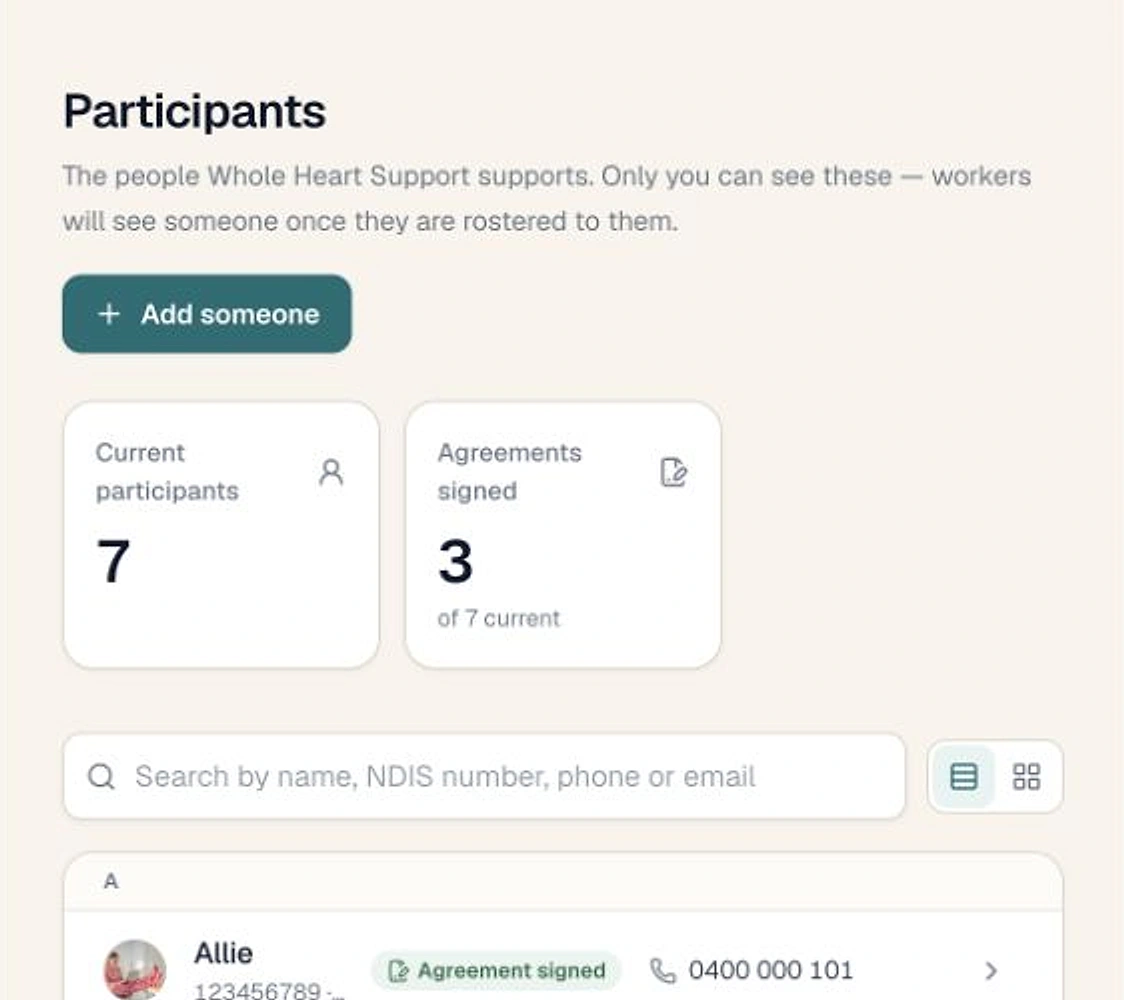
- Go to Participants, open the participant, and find Text messages next to their contact details.
- Select Change, tick Do not send text messages, then select Save preference.
- Installed phone-app controls may present things differently, so handle this particular setting in the browser.
What actually stops
- Scheduled text reminders to that participant stop.
- Any individual text you try to send manually to the same saved mobile number in your business is also blocked.
- If that same mobile number is shared across more than one participant record, including an archived one, the number stays blocked while any matching participant has an opt-out recorded.
- Eligible scheduled email reminders can continue, since email reminders are included at no extra charge and are a separate channel from SMS.
What does not change
- The participant's phone number stays on file. You are recording a preference, not deleting contact details.
- Their text message history stays visible, so you can still see what was sent before the opt-out.
- A message that was already sending, or one where the status is unclear, may still land. The opt-out stops future and queued sends, it does not recall one already in motion.
- A refused manual text does not automatically switch to an email instead. If you want that participant to still get a reminder, you would send the email yourself or check their eligible email reminder settings.
A fictional example, for illustration only
Picture a small, fictional provider coordinating community access shifts. One participant, referred to here only as Participant A for this anonymous example, mentions during a shift that the reminder texts are arriving at an awkward time and they would rather not get them at all. The coordinator opens Participant A's profile that evening, selects Text messages, ticks Do not send text messages, and saves it. No texts go out from that point, the number stays on file for emergency contact purposes, and Participant A keeps receiving the usual email reminder before their next shift. Nothing about their roster, agreement or shift notes changes.
Before you remove an opt-out
- Confirm the preference with the participant directly first. The app cannot receive replies to SPARKSPROV, so a text reply asking to resume messages will not be seen.
- Go back to Text messages, select Change, untick Do not send text messages, and select Save preference.
- Removing the opt-out does not resend any cancelled or queued texts from before.
- No opt-out on file is not the same as confirmed consent to text. If you are unsure, ask before sending.
The small habit worth keeping
Reminder preferences tend to come up in passing, during a shift or a phone call, not as a formal request. The useful habit is updating the setting the same day you hear about it, in the browser, on that one participant's profile, rather than trying to remember it for later. It takes less time than writing yourself a note to action it afterwards.
Related reading
- How to Send a Client Roster Without Another Round of Admin, sparksprovider.app/blog/how-to-send-a-client-roster-without-another-round-of-admin
- NDIS Software With Unlimited Staff and Clients: What It Actually Means, sparksprovider.app/blog/ndis-software-with-unlimited-staff-and-clients-what-it-actually-means
Common questions
The details people ask next.
Will turning off texts also stop email reminders to the same participant?
No. The text opt-out only affects SMS. Eligible scheduled email reminders are a separate setting and can keep going unless you change them too.
Can the participant text SPARKSPROV to opt out themselves?
No. SPARKSPROV is send-only and cannot accept replies, including the word STOP. A participant's preference has to be recorded in the app by your business.
What happens if two participants share the same mobile number and only one opts out?
The number stays blocked for texts while any matching participant, including an archived one, has the opt-out recorded, since the block applies to the saved mobile number itself.
Is this opt-out available in the mobile apps?
Set it in the browser version at app.sparksprovider.app. Installed phone-app controls may handle this differently, so the browser is the reliable place for this setting.
This article is general information about provider operations and Sparks Provider. It is not legal, financial, employment, NDIS or compliance advice. Check current requirements with the relevant authority or an adviser for your business.