
How-to
Sending Participant Consents to Sign: A Practical Walkthrough for Small Providers
How Sparks Provider sends participant consents for e-signing, tracks waiting and signed forms, and handles a change of mind. A fictional example included.

Kim MatthewsFounder and disability support provider
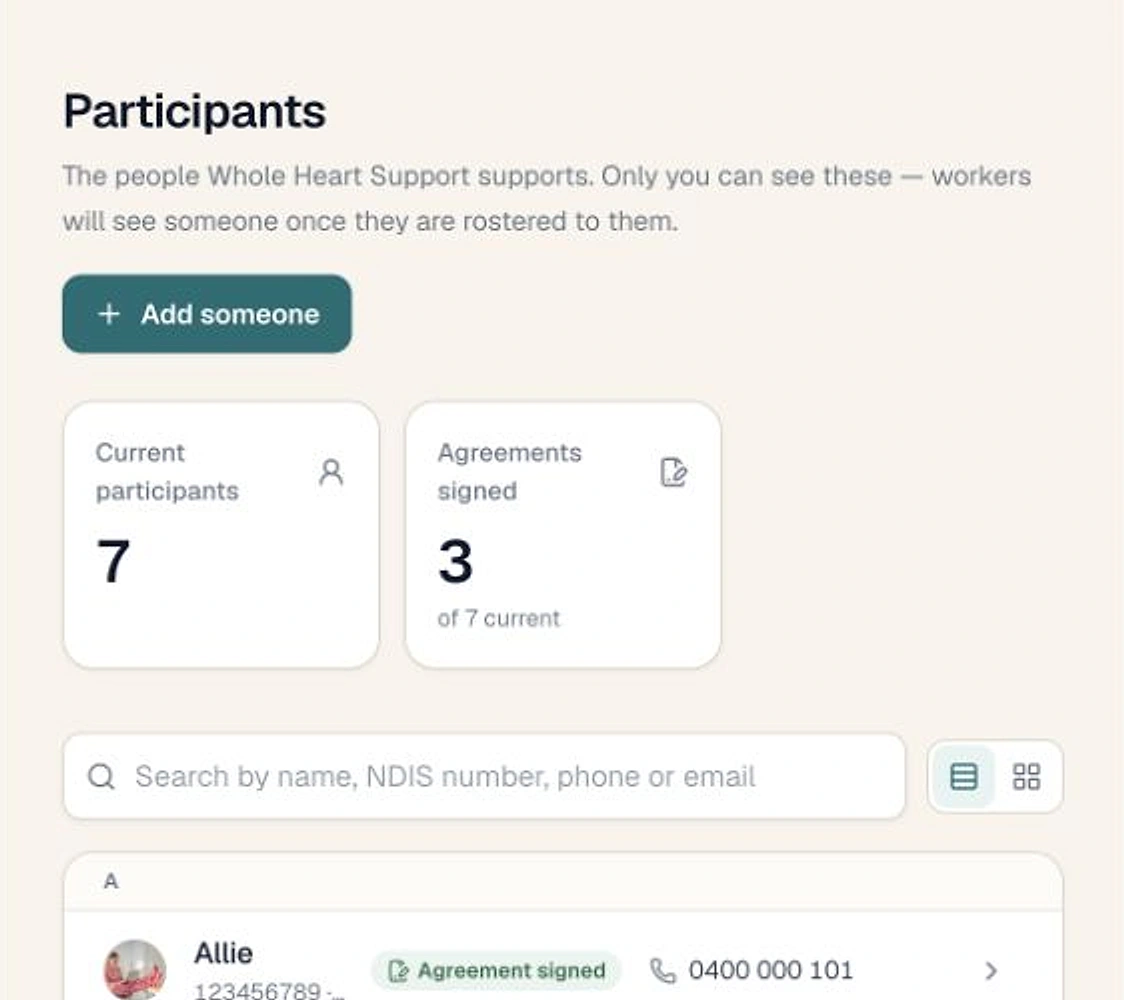
If you have ever printed a consent form, watched it sit in a participant's bag for three weeks, then re-printed it because nobody can find the original, this is for you. Sparks Provider sends participant consents by email, lets the right person sign on their phone, and keeps a record of what was agreed and when.
What you are actually sending
There are four consent types, and you can send any combination of them in one email: Privacy and information, Information sharing, Photos, video and audio, and Transport and activities. You tick the ones this person needs, and they all go out together rather than as four separate emails.
Set your wording once, not every time
Before you send your first consent, you fill in your usual wording under Paperwork, then Consents. Privacy covers your policy, what you collect, where records sit, how long you keep them and what happens if someone says no. Sharing, Photos and Transport each get their own tab for your usual reasons and practices. Sparks writes a first draft of this wording so you are not starting from a blank page, but you should read it and change anything that does not sound like your business before saving. This wording fills in automatically every time you send a consent from then on. Changing it later does not alter a consent that has already gone out, so a signed form always reflects what the person actually read.
A fictional example: chasing paper versus sending a link
Picture a fictional, anonymous small provider running a Tuesday social outing. Under a paper process, an admin prints a transport consent, a support worker carries it to the family, and it comes back a fortnight later, half-filled, with the pickup address missing. Using Sparks Provider instead, the admin opens the participant's file, selects Transport and activities, and most of the form is already done. The regular shift days and times, the pickup address, support needs and emergency contact pull from the participant's file and their usual shifts. The only field usually left to fill in is where the outing actually goes. The family receives an email, enters a 6-digit code, and signs from their phone that evening.
Who can actually sign
Most of the time the participant signs for themselves. When someone else needs to sign on their behalf, Sparks Provider asks you to record that person's authority to decide. A contact record or a family link by itself is not treated as authority. This is a genuinely important step to get right for the person in front of you, and it is outside what any software can decide for you, so check the wording and the person's authority before you rely on it, and seek independent advice if you are unsure.
Tracking status without chasing anyone
Once sent, each consent sits under Waiting, Signed or No longer in use on the participant's Consents tab. A waiting consent has Send again and Copy a new link, either of which creates a fresh link and retires the old one. Open a signed consent to see every answer, who signed it, when, and which email address the code went to. The same pages the signer read are available as a downloadable PDF.
When someone changes their mind
If a participant or their decision-maker later changes their mind, you record it against the signed consent, choosing all of it or just part, plus the day and how they told you. The original signed record is never edited. The consent then shows what was withdrawn and from when, so you have both the original agreement and the later change sitting together.
Paper signatures still happen
Not every consent will be signed digitally, and that is fine. If someone has signed on paper, the Consents tab has an Add it link that takes you straight to that participant's Documents, so the paper version sits with everything else about them rather than in a separate filing pile.
The practical takeaway
Sending a consent is quick. What actually saves admin time is everything after sending: knowing what is still waiting, having a signed PDF ready the moment someone asks for it, and being able to record a change of mind without rewriting history. That is the part worth setting up properly before your next intake.
Common questions
The details people ask next.
Does sending a consent require a particular plan?
Sending consents is a Provider Pro workflow in the browser. Viewing signed consents and recording a change of mind do not require Pro.
How long does a signing link last?
The emailed link works for 14 days, and each 6-digit code is valid for 10 minutes.
What happens if I send the same consent twice?
Sending again replaces an unsigned consent of the same kind. A consent that has already been signed is never changed.
Can a family member sign on a participant's behalf?
Only if they have recorded authority to decide for that participant. A contact record or family link alone is not treated as authority, so check this for the person and situation, and seek independent advice if unsure.
What if a participant already signed on paper?
Use the Add it link on the Consents tab to attach the paper copy to that participant's Documents, so it sits alongside their other records.
This article is general information about provider operations and Sparks Provider. It is not legal, financial, employment, NDIS or compliance advice. Check current requirements with the relevant authority or an adviser for your business.