
Checklist
What Sparks Provider's First-Time Checklist Actually Does (And Why It Doesn't Disappear)
A practical look at the Home screen setup checklist in Sparks Provider: what it tracks, why items stay visible, and a sensible order for a new provider.

Kim MatthewsFounder and disability support provider
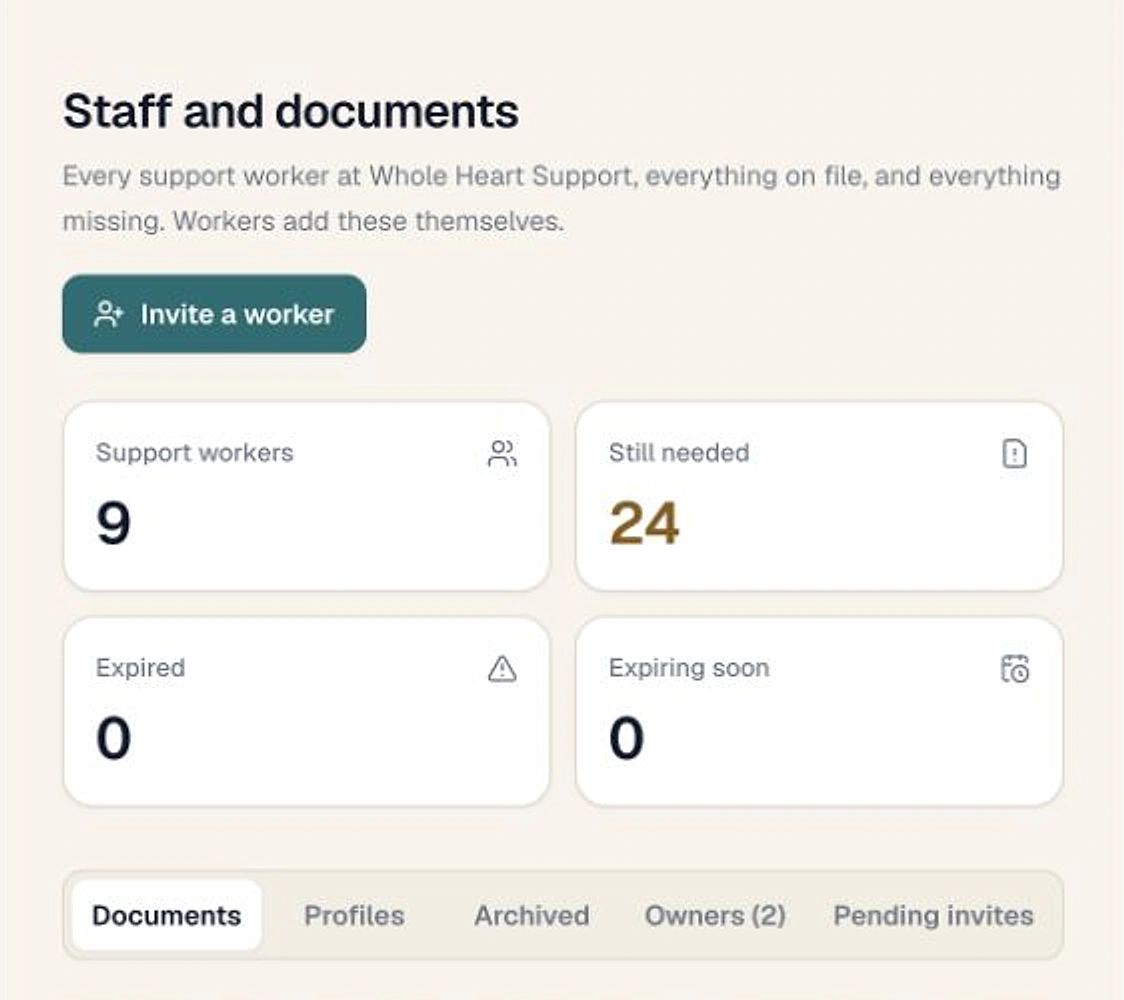
If you've just opened Sparks Provider for the first time, you've probably noticed the checklist sitting on your Home screen under Finish setting up. It's not a popup you can swipe away and forget. It stays there, item by item, until each one is genuinely complete.
That persistence is the whole point. A lot of setup checklists in business software are really just a welcome tour, something to click through once. This one works differently. The app checks whether a step has actually been finished, not just opened, before it clears the item. That matters when you're setting up a provider business, because half-finished setup is where small problems start, like a price book that's missing an item or a staff invitation that never went out.
Where the checklist lives and how it behaves
From Home, the Finish setting up panel lists the steps still open, and marks the next one as Next. Opening it takes you straight to the right screen to complete that action. Once you've done it and returned to Home, the app checks whether the step can be verified as done. If it can, the item disappears from the list. If something's incomplete, it stays, so nothing quietly falls through the cracks.
You're also allowed to leave something unfinished. Maybe you're not ready to invite your first support worker, or you want to build your price book over a few sessions rather than one sitting. The checklist doesn't force an order and it doesn't expire. It simply keeps the unfinished items visible so you don't have to remember them yourself.
A sensible order, even though the app doesn't demand one
Because the checklist lets you jump around, it helps to have your own rough sequence in mind rather than just clicking whatever's marked Next. A practical order for a new provider business usually looks like this: get the business and subscription details right first, since everything else sits under that business. Then set up your price book so the support items you actually use are ready before you touch rostering. After that, add participants and any service agreements that need signing. Staff invitations can come a little later, once you know what shifts you'll actually be rostering them onto, since each invited worker only sees their own shifts and the client details relevant to those shifts.
Leaving staff invitations for last isn't a rule the checklist enforces. It's simply more useful to invite someone once there's a roster worth showing them, rather than sending an invitation into an empty account.
A fictional example of how this plays out
To make this concrete, imagine a fictional, anonymous two-person support service. This is not a real business, just an illustration. The owner signs up, finishes the subscription step, then gets distracted setting up the price book and leaves it half done because she's not sure which support items she'll actually use yet. She closes the laptop. Two days later she logs back in, and the price book step is still sitting there on Home, exactly where she left it, with the subscription step already cleared because it was genuinely completed. She finishes the price book, moves on to adding her first participant and sending a service agreement for signing, and only invites her two support workers once their first week of shifts is actually rostered. Nothing was lost in the gap, because the checklist held her place rather than assuming she'd remember everything herself.
What finishing the checklist does and doesn't mean
Once every item clears, the Finish setting up panel stops appearing on Home. That's a useful signal that the basic structure of your business, price book, and first participant or staff records are in place. It is not a claim that your business is compliant with NDIS obligations. Sparks Provider keeps the operational records organised; the responsibility for meeting your obligations as a provider stays with you. If you want a visual run-through of setup instead of reading it, the Sparks Provider how-to videos cover the same ground step by step.
If you're also planning how to bring on a first employee or move from solo operator to a small team, it's worth reading our related guide on the admin worth setting up first as that team grows, which covers what to prioritise once the initial checklist is behind you.
Common questions
The details people ask next.
Does the order I complete checklist items in matter?
No. The app lets you open any unfinished step in any order. The checklist only tracks what's done and what's left, it doesn't enforce a sequence.
What happens if I leave a checklist item unfinished for weeks?
Nothing is lost. The item stays visible under Finish setting up on Home until you complete it, however long that takes.
Can my support workers see this setup checklist?
The checklist relates to business setup, which owners and admins manage. Invited staff see their own shifts and the client details relevant to those shifts, not the business setup checklist.
Does finishing the checklist mean my business is NDIS compliant?
No. Finishing the checklist means your basic account setup is complete. It helps keep records organised, but your provider obligations remain your responsibility.
Where do I manage the subscription step if it's part of my checklist?
An owner can go to Business, then Subscription, to manage the business's subscription and payment details.
This article is general information only and is not legal, employment, payroll or award advice. Check current requirements with the Fair Work Ombudsman (fairwork.gov.au) or an adviser for your business.