
How-to
New NDIS Participants: A Practical Onboarding Walkthrough
How to collect a new participant's details, track who is mid onboarding, and move from enquiry to first shift in Sparks Provider without double handling.

Kim MatthewsFounder and disability support provider
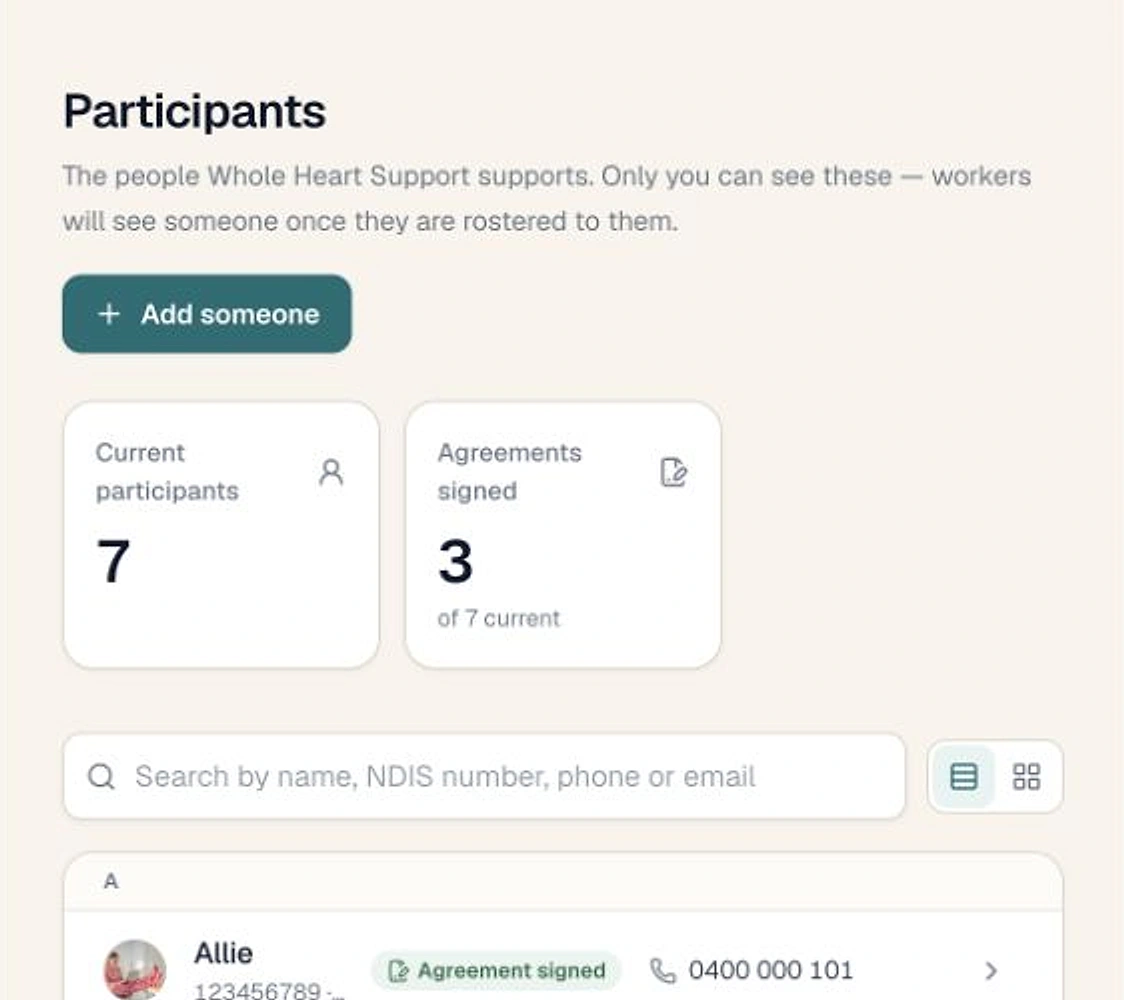
A new participant enquiry lands and you want one clean path from first contact to first shift, not three spreadsheets and a sticky note on the monitor. Here is how that works inside Sparks Provider, including the bit most providers get wrong early on: creating a second profile for someone who already exists in the system.
Start with the name, not the whole file
Go to Participants, then Add participant, and type their name. The last name can wait if you only have a first name from a phone call. If this person already has a profile in Provider, do not add them again. Open their existing profile and use Onboarding from there instead. Creating a duplicate just means you are chasing two records for one person later.
Choose who types the details in
Provider gives you two ways to collect information: Email them a form, or I will add them myself. Emailing the form sends a private link to the participant or to whoever helps them with paperwork, and it is part of Provider Pro. I will add them myself opens their page so you can type details straight in, which suits a phone intake where you are already taking notes.
If you email the form, enter the right email address, add a note if it helps, then choose Send form. The link comes from your business, works for seven days, and accepts one submission. If you need to copy the link into your own message instead of sending Provider's email, that option is there too. Nothing is emailed automatically behind your back; you choose who gets each link.
Keep the enquiry itself up to date
Separate from the participant's profile, Their enquiry holds where they are up to, who referred them, your next action and a follow up date. Owners and admins can see these private call notes, and the Due filter surfaces anyone whose follow up is overdue. If the enquiry does not go ahead, Close their enquiry at the bottom of Onboarding. Nothing is deleted, and you can reopen it later if they come back.
Checking a returned form before it touches the profile
When someone submits the form, it does not silently overwrite anything. Go to Participants, then Onboarding, then Answers to check. Every answer they sent is ticked to add by default, and Replaces shows exactly what would change. You can untick anything you want to leave out, then choose Add to their profile or Keep their profile as it is. If they typed their name differently to how it is already on file, the existing spelling stays unless you tick Use their spelling instead, because that name is what invoices and Xero match against.
Worth saying plainly: adding medication notes from a form does not create a medication schedule, consent, a service agreement or representative authority. It is information on file, not a decision about care or funding.
Seeing who is still mid onboarding
Participants who still have something open sit at the top of your Participants list. Participants, then New, shows only those people, each with a single status: Answers to check, Follow-up due, Form sent, or a count of steps completed. Open any one of them and you will see the eight onboarding steps: added, their details, support needs and goals, NDIS plan and invoicing, consents, service agreement, risk assessment, and first shift.
A fictional, anonymous example: imagine a small community support provider gets a referral for a new participant on a Tuesday afternoon. The admin types the first name into Add participant, sends the form to the participant's sister who handles paperwork, and sets a follow up for Thursday. By Friday the form is back. The admin checks the returned answers, adds the NDIS and emergency contact details, leaves the health notes out because they want to confirm them by phone first, and the participant's page now shows four of eight onboarding steps done. Nothing was duplicated, and nothing was added without someone checking it first.
Steps tick themselves, your judgement does not
Each onboarding step marks itself once the matching record exists, such as a signed service agreement or a goal on file. You can also use Mark as checked, which records your name and the date, with an optional note and a recheck date. Marking steps is part of Provider Pro. None of this is a compliance certification or proof you have met your obligations. It is a checklist showing what is on file, so you can see at a glance what is still missing before that first shift goes on the roster.
Related reading
If you are setting up records for a small team for the first time, see From Solo Operator to Small Team: The Admin Worth Setting Up First. If you are moving participant history across from another system, How to Plan a Calmer Move to a New Provider System covers that in phases.
Common questions
The details people ask next.
Does emailing the intake form require a paid plan?
Emailing a participant a form to fill in themselves, and marking onboarding steps as checked, are both part of Provider Pro. Adding details yourself does not require that.
What happens if the participant does not finish the form in time?
The link works for seven days and accepts one submission. If it expires or closes, you can send a new link from their page under Onboarding, then Forms you have sent. A new link replaces the previous uncompleted one.
Will a returned form overwrite details I already have on file?
No. Every answer is ticked to add by default and you can see what it would replace before confirming. You choose what goes to the profile and what to leave as is.
Can the onboarding form confirm someone's identity or authority to act for the participant?
No. The form does not verify identity or representative authority, and it does not reveal existing profile details to the person filling it in.
Does completing all eight onboarding steps mean the participant file is compliant?
No. The steps show what is on file, not approval or compliance. The provider remains responsible for its own obligations.
This article is general information about provider operations and Sparks Provider. It is not legal, financial, employment, NDIS or compliance advice. Check current requirements with the relevant authority or an adviser for your business.