
How-to
Emailing One or Several NDIS Invoices Without Losing Track of Any
A practical look at emailing one invoice or a whole batch in Sparks Provider, including what happens with missing emails and how to read delivery results.

Kim MatthewsFounder and disability support provider
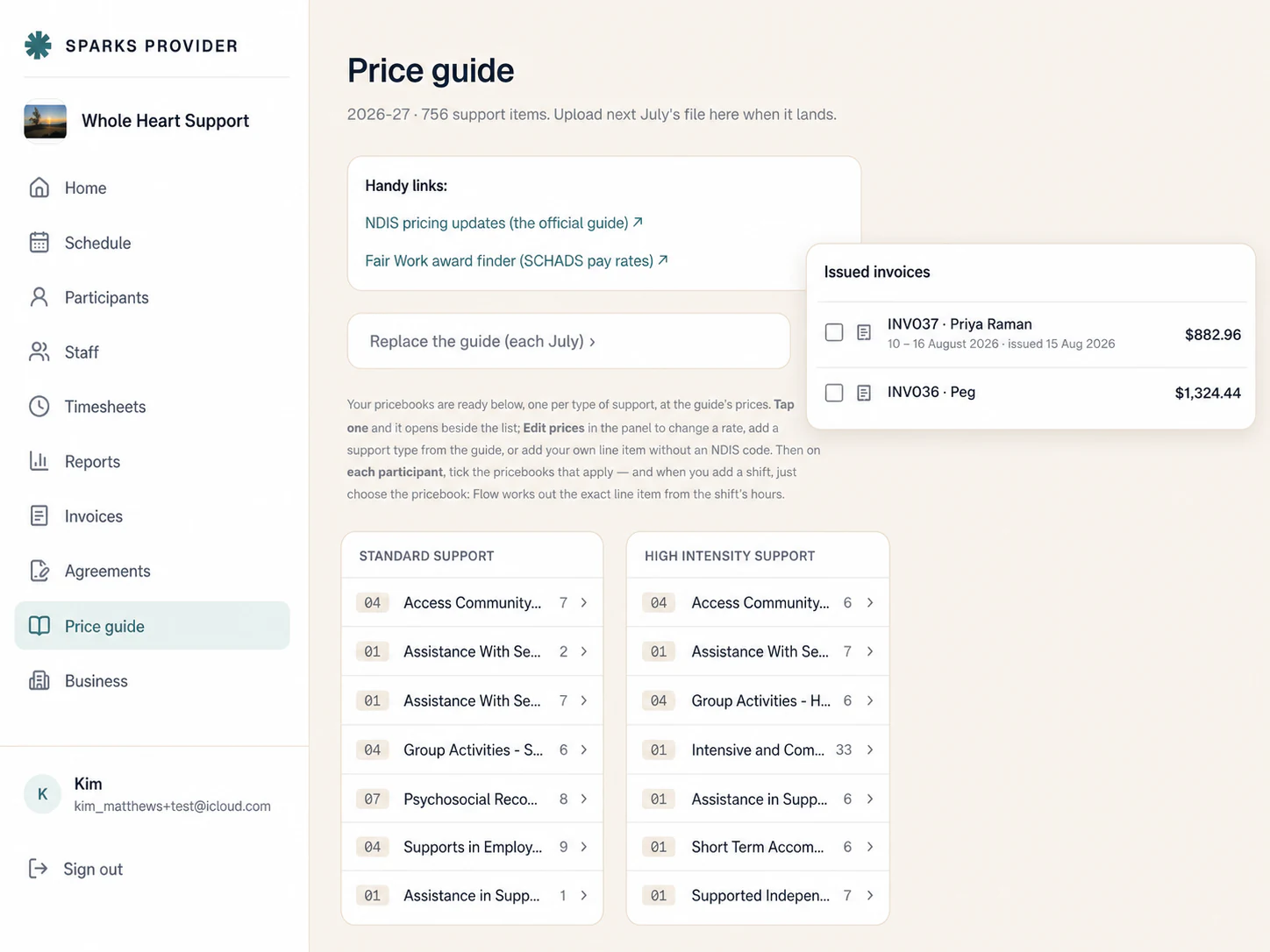
You can email a single invoice from its own page, or select several in the invoice list and send them as one batch. Either way, Provider sends the saved PDF version of the invoice, checks the billing email on the participant profile, and gives you a result for every row before you move on.
This matters more than it sounds. A provider with ten or twenty active participants is not sending ten or twenty emails one at a time every fortnight. They are batching. And batching only works if you can trust what the screen is telling you about what actually went out.
Selecting nothing still does something
If you tick a row, the Email invoices button shows the selected count. If you tick nothing and click it anyway, Provider does not sit idle. It reviews the invoices currently in view that have not been emailed yet, and it leaves NDIA invoices out of that default review. Select all brings the displayed invoices into the review too, but only the eligible rows can actually be sent.
The practical takeaway is to check what view you are in before you click. A filtered list and an unfiltered list will not review the same invoices.
Fix the email before you fix the send
Before anything goes out, you get a review screen showing each billing email address and the invoices lined up for delivery. If an address is missing or wrong, that fix happens on the participant profile, not on the invoice. Once it is corrected, you review again.
Worth remembering: Provider sends the saved invoice version. If you changed something on the invoice after it was generated, check it reflects what you want before emailing, because the email will not recalculate it for you.
Reading the result line by line
After you choose Email with the reviewed count, Provider works through each invoice and reports a result. Rows with missing addresses or individual delivery problems stay behind. Everything eligible still goes out around them. Nothing is blocked just because one row had an issue.
It also helps to remember that generating an invoice and emailing an invoice are two separate steps. Creating the invoice does not send it. That is deliberate, so a business can generate a batch, check it, and only then decide it is ready to go to participants or their nominees.
A fictional example: the Friday batch
This example is fictional and anonymous, used only to show the flow. A small support provider sits down on a Friday with eleven unsent invoices from the week. They select all eleven and choose Email invoices. The review screen shows nine good addresses and two blank ones. They leave the batch open, jump into the two participant profiles, add the missing billing emails, and come back to re-review. This time all eleven show a valid address, so they send. The result screen comes back with ten delivered and one flagged as undeliverable, which they note to check manually rather than resend on the spot.
When to use Send again, and when not to
Each invoice has a History tab showing delivery updates, and a Send again action for a deliberate repeat. This is not an automatic retry. It is a separate, explicit click, which matters because repeatedly sending the same invoice while a result looks uncertain just creates confusion about what a participant actually received.
It is also worth being clear with your own team about what a good result means. Accepted for delivery tells you the email was handed off, not that it was opened, read or paid. If a participant says they never saw an invoice, History is the place to check what actually happened, rather than resending on a guess.
None of this replaces good judgement about your own billing relationships. But knowing exactly which invoices went out, to which address, and with what result, is the difference between a batch you can defend and a batch you are hoping worked.
Common questions
The details people ask next.
Does emailing an invoice recalculate it first?
No. Provider sends the saved invoice version as it currently exists. If you need different figures, update the invoice before emailing it.
Why were some invoices left out when I selected nothing?
With nothing ticked, Provider reviews invoices in view that have not been emailed yet and leaves out NDIA invoices, since those generally follow a different claims process.
What happens if a participant's billing email is wrong?
That row stays behind in the review or result screen. Fix the email on the participant profile, then review the batch again before sending.
Can I tell if an invoice was actually opened or paid?
No. Accepted for delivery only confirms the email was handed off, not that it was received, read or paid. Check History for updates rather than assuming.
This article is general information only and is not financial, NDIS or compliance advice. NDIS pricing and claiming requirements can change, so check the current NDIA pricing arrangements and provider guidance before relying on it.