
How-to
Xero Payroll in Sparks Provider: What You Set Up Once and What You Check Every Week
How the Xero payroll workflow in Sparks Provider splits into one-time worker setup and a weekly check, with a fictional example of a new starter.

Kim MatthewsFounder and disability support provider
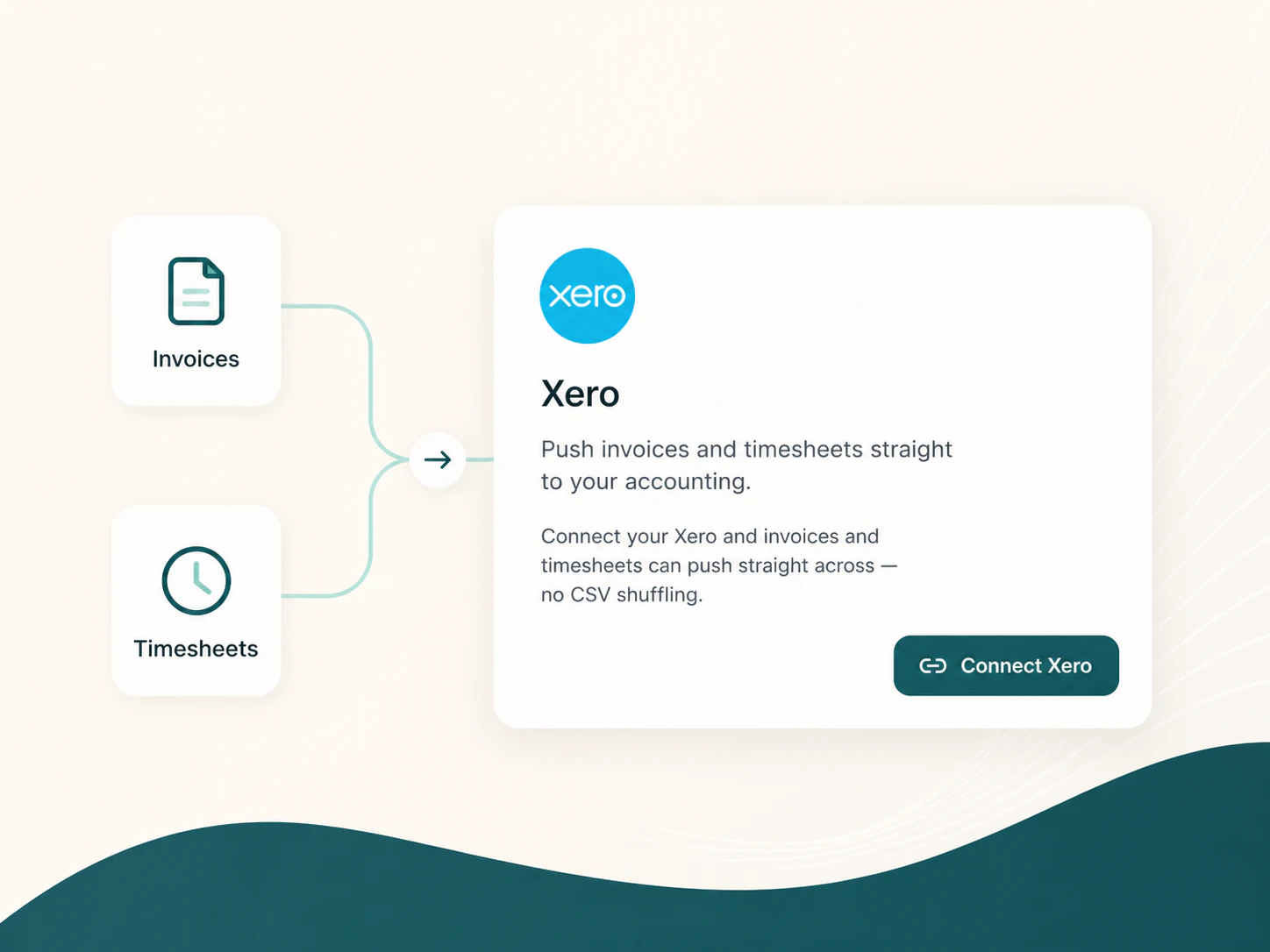
If sending timesheets to Xero feels slower some weeks than others, it is almost always because a worker's setup was never finished, not because the weekly process changed. Sparks Provider is built around two separate jobs: configure a worker's Xero pay items once, then review and send their approved hours every pay week. Mixing those two jobs up is where most of the friction comes from.
Two different jobs, not one long checklist
The setup job happens in Staff, on a worker's profile, and in Timesheets under Pay-item defaults. It is where you record a worker's classification and choose which Xero earnings items apply to their weekday, evening, night, Saturday, Sunday and public holiday work. You do this once per worker, and again only if something about their employment changes.
The weekly job happens in Schedule and Timesheets. You approve the worked hours that should be paid, open Review and send to Xero, and send the staff marked Ready. If the setup job was done properly, this is a short task: pick the week, check the list, send.
What you set up once per worker
- Their SCHADS level and pay point on the staff profile, which is a Provider record, not a Xero rate change.
- Their matched, unique, active employee record in Xero, including pay calendar.
- Saved pay-item defaults for each type of shift they actually work: ordinary hours, afternoon or evening, night, Saturday, Sunday, public holiday.
- Confirmation that the Xero pay item names and rates were checked in Payroll settings, not assumed from the item name.
What you check every single week
- Whether you approved rostered hours or actual sign-in and sign-out hours for that week.
- That the staff you intend to pay for this period are selected before sending.
- The green Ready tick for each person, and the expanded detail for anyone without one.
- The Xero drafts afterwards: employee, date, earnings item, hour total and any extra, before anyone approves payroll in Xero.
When Ready stops meaning ready
A Ready tick means the saved defaults for that person currently cover their approved hours. It does not mean the setup is permanent. A worker moving from casual to permanent, changing classification, picking up a new shift type like an active overnight they have never worked before, or being reconnected to a different Xero business all reset that. Sparks Provider will not quietly guess an item for hours it cannot match. A missing item stays unselected rather than defaulting to ordinary hours, which is the safer failure but still means someone has to look at it before the week can be sent.
A fictional example
This is a fictional, anonymous example used for illustration only. Picture a small in-home support provider with six regular workers already set up and sending cleanly each week. A new part-time worker starts, is invited to their own account, and is rostered onto three shifts in their first week, including one Saturday afternoon shift. When the admin opens Review and send to Xero, everyone else shows Ready. The new worker does not, because no pay-item defaults have been saved for them yet. The admin opens their row, matches them to the correct Xero employee, selects the Saturday and weekday items, saves the defaults, and sends. The following week, that same worker shows Ready like everyone else, because the one-time setup is now done.
What this workflow will not do for you
Sparks Provider approves hours and hands them to Xero as draft timesheets for checking. It does not set wages, interpret the award, calculate overtime or penalty loadings, or decide what a correct rate should be. Those checks happen inside Xero, and inactive sleepovers still need manual entry there. Xero integration is included in the $499 annual Sparks Provider subscription, with unlimited staff and clients, but the payroll decisions themselves stay with the business and its accounting setup.
The practical takeaway is simple: treat new starters, classification changes and new shift types as setup moments, not weekly surprises. Do that once, and the weekly send goes back to being the short task it is meant to be.
Common questions
The details people ask next.
Does saving a SCHADS level in Sparks Provider change the pay rate in Xero?
No. Saving a classification on the staff profile is a Provider record only. The actual dollar rate lives in Xero's pay items, and you still choose and save which Xero item applies to each shift type.
What happens if a worker's pay-item defaults are missing for one shift type?
That item stays unselected rather than being treated as ordinary hours. You can select the correct item on that shift row for the current export, or save proper defaults so future weeks are covered automatically.
Does sending a week to Xero approve payroll?
No. Sparks Provider sends approved hours as draft timesheets. Someone still needs to open Xero Payroll, check each employee's drafts, and approve payroll there.
Can one Provider week span two Xero pay periods?
Yes. Only the selected Provider week is sent in that action. If your Xero pay period is fortnightly or four-weekly, you will send the matching weeks separately, and monthly calendars need manual entry.
This article is general information only and is not legal, employment, payroll or award advice. Check current requirements with the Fair Work Ombudsman (fairwork.gov.au) or an adviser for your business.