
How-to
From Solo Operator to Small Team: The Admin Worth Setting Up First
Hiring your first support workers? Here is the setup order that keeps staff records, rosters, notes and approvals clean from day one.

Kim MatthewsFounder and disability support provider
You have been doing the support work yourself, and now you are hiring. The paperwork that worked for one person breaks fast once someone else is on shift. Here is the setup order that avoids a messy first fortnight.
1. Get participants and your price book right before anyone else touches the system
Before you add a single staff member, make sure your participant details, documents and service agreements are already in Sparks Provider, and that your price book reflects the support items you actually use. Everything a worker later logs, an invoice or a claim file, is priced from that business price book. Fixing it after staff start using the system means correcting shifts that have already happened.
2. Add staff records first, invite people when you are ready
You do not need to send an invitation the moment you add someone. Create the staff record, set up what you need, and invite them when their start date is actually confirmed. This matters if you are onboarding two workers a fortnight apart, you do not want the first person's account sitting half-finished while you wait on the second.
Once invited, a worker gets their own account. They see their own shifts and only the client details they need for those shifts, they record their availability, and they submit their hours. They do not see your whole participant list or every other worker's roster.
3. Build the roster around real shifts, not a template
A worked example: Dee has been running solo support work for eighteen months, tracking shifts in a spreadsheet. She hires two part-time support workers. Instead of copying her old spreadsheet pattern into the roster, she plans the actual week ahead, one-off shifts for new participants still settling in, repeating shifts for established ones, an unassigned shift for a Saturday she has not covered yet, and a 2:1 support for a participant who needs it. Unassigned shifts stay visible until someone is rostered on, so nothing quietly falls through.
The roster also handles public holidays, sleepovers, active overnights and chargeable cancellations, so Dee is not manually adjusting for these later when it is time to invoice.
4. Turn on shift notes and approve hours before you invoice
Workers can add shift notes or incident reports directly against the shift they worked. Encourage this from the first shift, not once it becomes a habit worth breaking. As the owner, review the week and approve hours before anything moves to invoicing or Xero. This is the checkpoint that catches a mistyped end time or a shift logged against the wrong participant, while it is still one week old rather than three.
5. Connect Xero once your first week is approved, not before
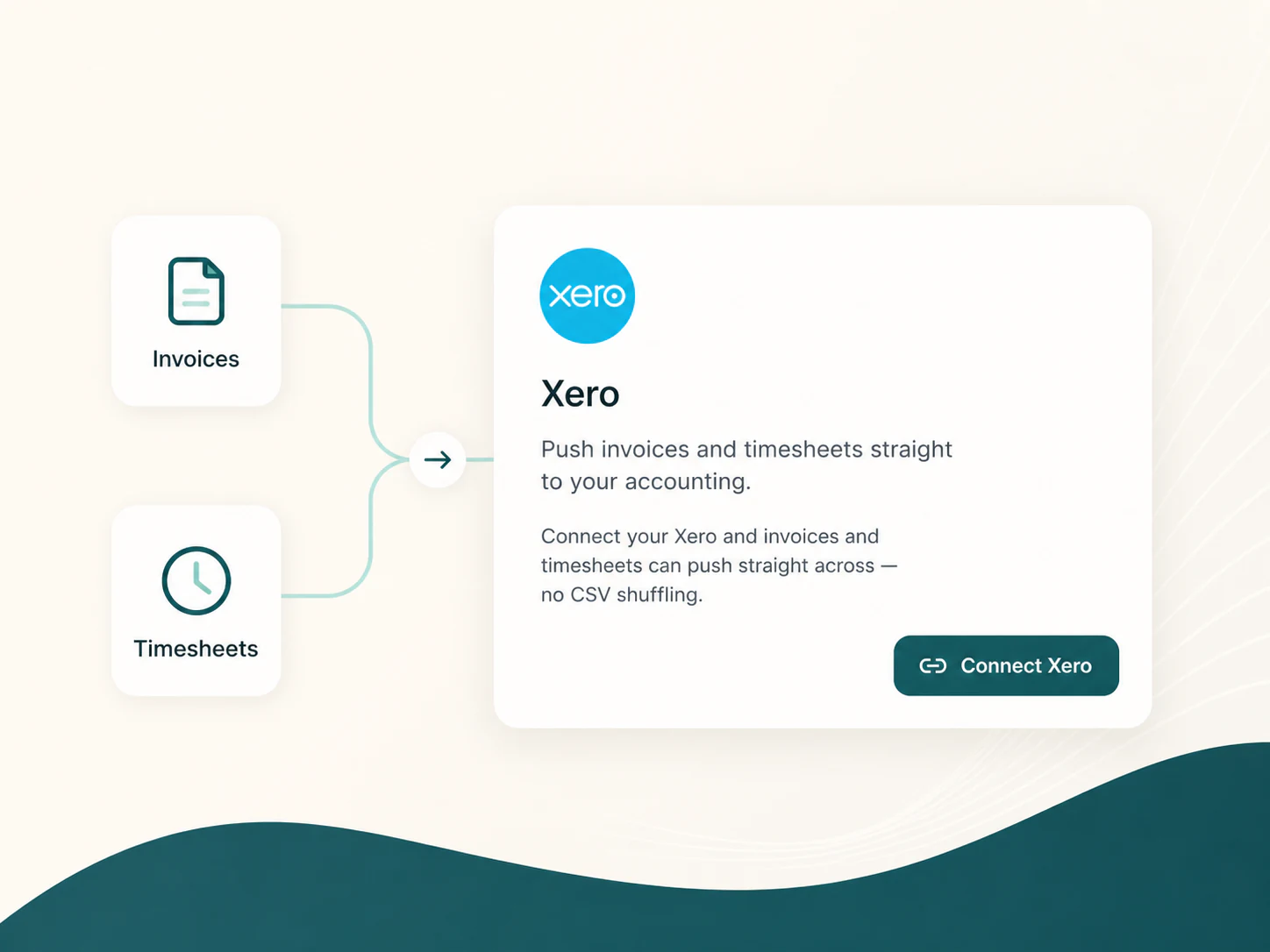
Once hours are approved, invoices can be pushed to Xero as drafts, and approved timesheets can go to Xero payroll as draft timesheets for checking. Sparks Provider does not calculate wages, interpret awards or decide pay rates, it hands over the draft so your bookkeeper or payroll process can finish the job. Connecting Xero on day one, before you have a clean approved week to send, just means an empty integration sitting there. Wait until you have real data worth pushing across.
If you are moving from a spreadsheet, ShiftCare or Sparks Scribe
If your records currently live in a spreadsheet, you are entering staff and participants manually, which is exactly the order above. If you have been using ShiftCare, a built in import brings across participants, staff invitations and up to seven years of shift history and progress notes, and re-importing the same file will not duplicate anyone. If you started as a sole trader on Sparks Scribe and have now grown into a provider team, there is a supported move that carries your existing work into the team setup.
- Set up participants and the price book before adding staff
- Create staff records, then invite people when their start date is confirmed
- Roster real shifts for the week ahead, including unassigned ones you still need to cover
- Get shift notes and hour approval running before your first invoice run
- Connect Xero once you have an approved week worth sending across
Common questions
The details people ask next.
Do I have to invite a staff member as soon as I add their record?
No. You can add the staff record first and send the invitation later, once their start date is confirmed.
Will my subscription cost more once I have staff?
No. Sparks Provider is $499 per year including GST, with unlimited staff and unlimited clients, priced per business rather than per person.
Can a new support worker see other participants I work with?
No. Staff see their own shifts and the client details they need for those shifts, not your full participant list.
What if I have years of history in ShiftCare already?
A built in import brings across participants, staff invitations and up to seven years of shift history and progress notes. Re-importing the same file will not create duplicates.
Do I need to connect Xero before I start rostering staff?
No. Roster, notes and hour approval can run first. Connect Xero once you have an approved week of hours or invoices ready to send across.
This article is general information only and is not financial, NDIS or compliance advice. NDIS pricing and claiming requirements can change, so check the current NDIA pricing arrangements and provider guidance before relying on it.