
Checklist
A Small Provider's Checklist Before Sending Timesheets to Xero
A practical checklist for small NDIS providers reviewing approved hours before sending draft timesheets to Xero payroll for checking.

Kim MatthewsFounder and disability support provider
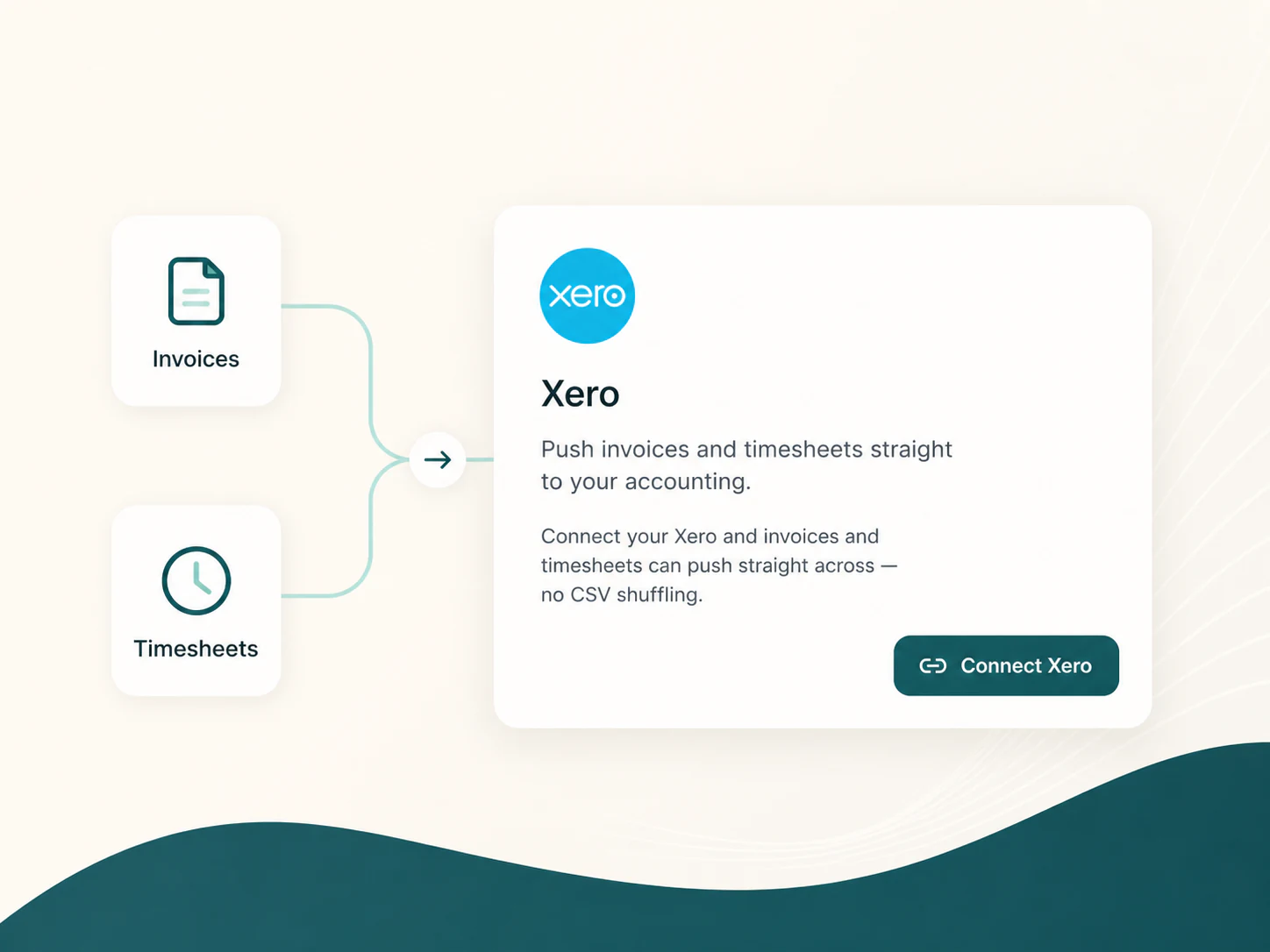
Before you push a week of approved timesheets to Xero, run through this checklist. It separates the setup work you only do occasionally from the weekly checks you do every payroll cycle, so nothing slips through because it felt like someone else's job.
Sparks Provider records shifts, lets staff submit their hours, and lets an owner or admin approve them. Approved timesheets can then be sent to Xero payroll as draft timesheets for checking. Sparks Provider does not calculate wages, interpret awards, or decide pay rates. Xero, and whoever manages your payroll, still does that part.
1. Confirm every staff member is linked to their Xero employee record
This is a configuration check, not a weekly one. Each support worker in Sparks Provider needs to be matched to the correct person in Xero before their hours will land where you expect. If a new worker started this fortnight, check the mapping before you approve anything for them, not after the draft timesheet has already been sent.
2. Check unassigned or swapped shifts have been reassigned
An unassigned shift or a last-minute swap that never got updated in the roster can leave a shift sitting under the wrong worker, or under no one. Scan the week for anything still marked unassigned before you move to approvals.
3. Review approved hours against rostered hours
Rostered hours are the plan. Approved hours are what actually happened. A shift that ran short, ran long, or was cancelled with notice should show a different number to what was originally rostered. If every approved shift matches the roster exactly, that is worth a second look rather than assuming it is correct.
4. Separate ordinary hours from allowances
Sleepovers, active overnights, and 2:1 or 3:1 supports are not ordinary shifts, and they should not be approved as if they were. Check that these shift types are recorded correctly in the roster before approval, because that is the record that flows through to the draft timesheet. What Xero and your payroll process do with that information from there is a payroll decision, not something Sparks Provider decides for you.
5. Confirm public holidays and chargeable cancellations are flagged
A shift worked on a public holiday, or a cancellation that is chargeable under the participant's service agreement, needs to be marked as such in the roster, not left looking like an ordinary weekday shift. This affects both the invoice from your price book and the record you hand to payroll.
6. Check shift notes and incident reports are complete
Before approving, glance at whether shift notes or incident reports are attached where they should be. It is a small habit that saves a scramble later if a question comes up about a particular shift.
7. Send draft timesheets to Xero and review before finalising
Once approved, timesheets can be sent to Xero as drafts. Review them in Xero before anything is finalised in payroll. Draft means draft. It is a checking step, not a final decision.
A worked example
Picture a small provider, Riverside Community Supports, with eight support workers. One worker did a Thursday overnight active support that ran into a public holiday at midnight. The roster had it entered as a single ordinary shift. When the admin reviewed the week before approving hours, she noticed the shift spanned the holiday and split it into two entries, one active overnight and one public holiday shift, matching what actually happened on the night. She approved the corrected entries, then sent the draft timesheet to Xero. Because she checked the roster against what actually happened rather than approving on autopilot, the draft timesheet reflected the real shift, and payroll had accurate information to work with.
The takeaway
Treat configuration checks like staff mapping as a one-off setup task, and treat hours, shift types and allowances as a weekly review before every approval. The draft timesheet Xero receives is only as accurate as the roster and approvals behind it.
Common questions
The details people ask next.
Does Sparks Provider calculate wages or apply award rates?
No. Sparks Provider records and approves hours, then sends draft timesheets to Xero for checking. Wage calculations and award interpretation happen in Xero payroll or with your payroll provider.
What happens if I re-send a timesheet to Xero by mistake?
It is sent as a draft for checking in Xero, so review it there before anything is finalised. Sparks Provider does not automatically finalise payroll on your behalf.
Can Sparks Provider tell me if a shift should be paid as a sleepover or an allowance?
No. Sparks Provider records the shift type as entered in the roster. Deciding how a shift type should be paid is a payroll and award question, not something Sparks Provider advises on.
Do I need a separate Xero subscription for this to work?
Yes, the Xero integration connects to your existing Xero account. Sparks Provider does not include or replace a Xero subscription.
This article is general information only and is not legal, employment, payroll or award advice. Check current requirements with the Fair Work Ombudsman (fairwork.gov.au) or an adviser for your business.