
How-to
Inviting Workers, Admins and Owners: Choosing the Right Access in Sparks Provider
How to invite support workers, admins and owners in Sparks Provider the right way the first time, with a fictional example and a quick pre-invite checklist.

Kim MatthewsFounder and disability support provider
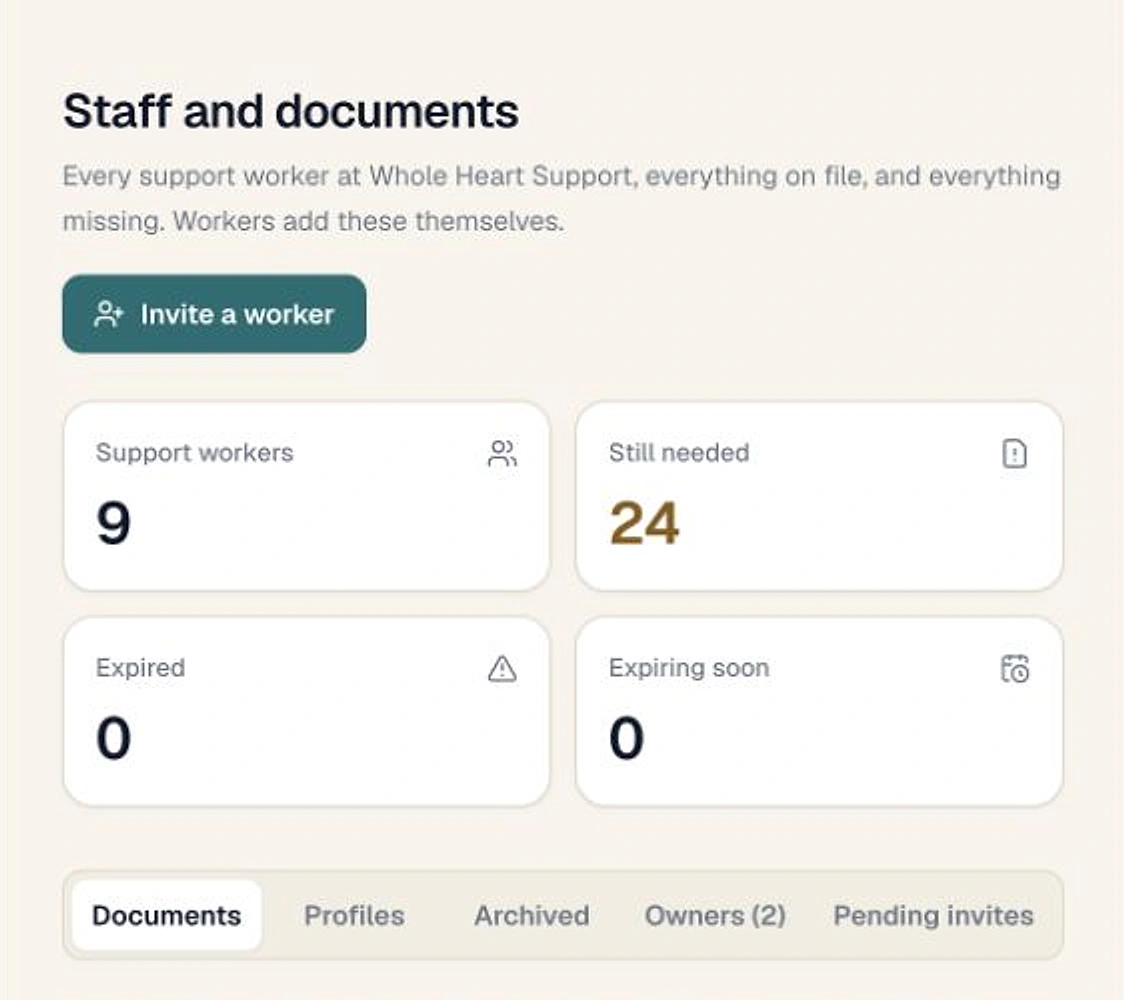
Who should get owner access, who just needs admin, and who only needs to see their own shifts? Get this wrong and you either lock yourself out of flexibility or hand permanent access to someone who was only ever meant to help with rostering. The fix is simple: invite each person once, with the role that matches what they actually do.
The three levels, and what each one is for
Sparks Provider has three types of invitation, and they come from two different places in the app.
- Staff: invited from Staff then Invite by email. This is always a support worker account. They see their own shifts and the client details needed for those shifts, record availability, add shift notes or incident reports, and submit their hours.
- Admin: invited from Business then Owners and admins. For someone who helps run the business day to day, such as a scheduler or office coordinator, without owning the business.
- Owner: also invited from Business then Owners and admins. Owner access is permanent and should only be chosen for a genuine business owner.
Why owner access deserves a second thought
Admin and Owner both sit outside the support worker role, but they are not interchangeable. Admin is the right call for most people who help run the operation, because it gives them the access to do that job without making the access permanent. Owner access is meant to reflect who actually owns the business. If you are not sure which one fits, Admin is almost always the safer starting point.
A fictional example: the roster helper who almost became an owner
Here is a fictional, anonymous scenario to make this concrete. A small two person support provider brings on a part time scheduler to help build the weekly roster and chase outstanding availability. The owner opens the Business page, sees Owners and admins, and is tempted to click Owner because it sounds like the senior option. In this fictional case, Admin is actually the better fit. The scheduler needs the access to help run the roster, not permanent ownership of the business itself. Choosing Admin here keeps the access appropriate to the job, and it can be reviewed later if the person's role in the business changes.
Fixing a mistake without creating duplicates
If you have already sent the wrong type of invitation, do not send a second one to the same email address. For a staff invitation, go to Staff, tap the person's name, and you can email the invitation again or revoke it from there. The invitation only works for the email address it was sent to, so if someone has not received it, check that the address was typed correctly before resending.
A simple checklist before you click invite
- Is this person delivering support shifts? Use Staff then Invite by email.
- Is this person helping run the business without owning it? Use Business then Owners and admins, and choose Admin.
- Is this person a genuine owner of the business? Use Business then Owners and admins, and choose Owner, knowing that access is permanent.
- Have you checked the email address is correct before sending, since the invitation only works for that exact address?
- If someone already has an invitation, are you resending or revoking from their entry on the Staff list, rather than creating a second one?
None of this costs extra to get right. Sparks Provider is $499 a year including GST, for unlimited staff and unlimited clients, so there is no reason to under-invite people or share one login between two roles. Invite the person who matches the job, and adjust later if their role in the business genuinely changes.
Common questions
The details people ask next.
Can a staff invitation later be changed into an admin invitation?
Staff invitations sent from Staff then Invite by email are always for a support worker account. To give that same person admin access, invite them separately from Business then Owners and admins.
What happens if I accidentally invite the same email twice?
Do not create a second invitation for the same email. Instead, tap their name on the Staff list to resend or revoke the existing invitation.
Should I make my bookkeeper or scheduler an owner?
Usually not. Admin is meant for someone who helps run the business without owning it. Owner access is permanent and should be reserved for a genuine business owner.
Can I revoke an invitation I have already sent?
Yes. Tap the person's name on the Staff list to email the invitation again or revoke it.
Does inviting more admins or staff cost anything extra?
No. Sparks Provider is $499 a year including GST for the whole business, with unlimited staff and unlimited clients.
This article is general information about provider operations and Sparks Provider. It is not legal, financial, employment, NDIS or compliance advice. Check current requirements with the relevant authority or an adviser for your business.