
How-to
Can I Approve All Shifts at Once in Sparks Provider?
Yes, you can batch-approve finished shifts in Sparks Provider. Here is how the bulk approval workflow works and what to check before you tick everything.

Kim MatthewsFounder and disability support provider
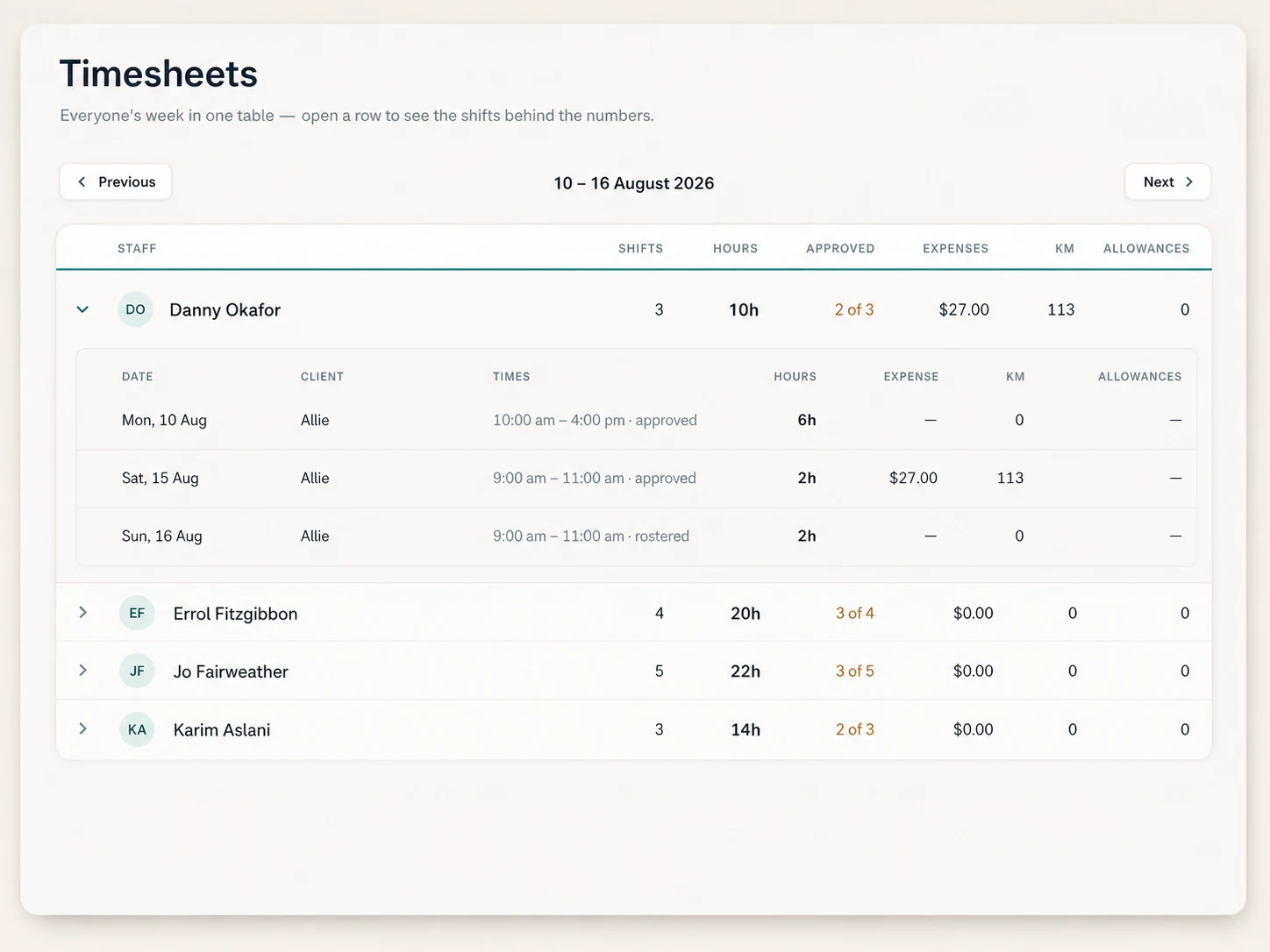
Yes, you can approve more than one shift at a time. On a computer, open Timesheets, go to the To approve tab, tick the finished shifts you want to lock in, then approve them as a batch instead of clicking into each shift one by one. For a small team running ten, twenty or forty shifts a week, that single change can turn Monday morning admin from an hour of clicking into a few minutes of checking.
How the bulk approval actually works
Sparks Provider treats a finished shift as something you open from either Schedule or Timesheets. Opening one shift at a time is fine when you are fixing something, but the Timesheets screen is built for volume. The To approve tab lists every finished shift waiting on a decision. On a computer you can tick several at once and approve them together, rather than repeating the same four clicks per shift.
Approval is what locks the hours and travel that payroll and invoicing will use. When you approve a shift, you choose whether pay is based on the rostered times or the times the worker actually signed in and out. That choice happens before you lock it in, so it is worth having a consistent rule for your team rather than deciding shift by shift.
What to check before you tick everything
Batch approval is a time saver, not a replacement for a quick look. Before you select a page full of shifts, scan for anything that needs fixing first, because approving locks the travel on that shift. Correcting travel after approval means undoing the approval, fixing it, then approving again.
- Shift notes or incident reports attached to the shift look complete
- Sign in and sign out times match what you would expect for that client and worker
- Travel entered on the shift is correct before you lock it
- Any one off changes, like a cancelled or shortened shift, are already reflected
A fictional Tuesday morning example
Picture a fictional, anonymous small provider with six support workers covering in home and community shifts across a week. Each Tuesday, an admin opens Timesheets and finds eighteen finished shifts sitting in To approve. In the old routine, each shift was opened, checked and approved individually, taking close to forty minutes. Now the admin scans the list for anything flagged with a note or an unusual sign in time, approves those two separately after a closer look, then ticks the remaining sixteen and approves them as one batch. The whole session takes under ten minutes, and the admin still reviewed every shift before it was locked.
What happens after you approve
Approved hours are what becomes invoices, priced from your business's own price book, and what gets handed to timesheets. Approved timesheets can be sent to Xero payroll as drafts for checking, since Sparks Provider does not calculate wages or interpret awards itself. It records and approves the hours, then Xero handles the payroll calculation from there.
If a shift has already been invoiced, there may be further restrictions on changing it, because the billing record already exists. That is one more reason to do the quick check described above before you approve a batch, rather than after.
When one at a time still makes sense
Bulk approval suits the straightforward week: regular shifts, no disputes over times, nothing unusual in the notes. When a shift involves a late change, a client complaint, an incident report or a pay dispute, open it individually so you can read everything on that one shift before deciding how it is paid. Batch approval is for clearing the routine work quickly so you have more time for the shifts that need a proper look.
Related reading
- A Small Provider's Checklist Before Sending Timesheets to Xero: https://sparksprovider.app/blog/a-small-providers-checklist-before-sending-timesheets-to-xero
- NDIS Provider Software With Xero Integration: What Sparks Provider Actually Sends Across: https://sparksprovider.app/blog/ndis-provider-software-with-xero-integration-what-sparks-provider-actually-sends
Common questions
The details people ask next.
Can I undo an approval if I spot a mistake after approving a batch?
Yes. Open the shift and choose Undo approval, correct the hours or travel, then approve it again. If the shift has already been invoiced, there may be further restrictions.
Can staff approve their own shifts?
Staff sign in and out of their shifts, but approval is an owner or admin step done from Schedule or Timesheets, so someone reviews the week before it moves to invoicing or payroll.
Does bulk ticking work from the phone app?
The batch tick and approve workflow in Timesheets is built for a computer screen. You can still open and approve individual shifts from the mobile apps or the browser version.
Does approving a shift submit a claim or send it to Xero automatically?
No. Approval locks the hours for invoicing and payroll. Invoices are then priced from your price book, and you choose when to push unsent invoices or approved timesheets to Xero.
This is general information, not financial or NDIS advice. Check current requirements with the relevant authority or an adviser for your business.