
How-to
A Practical Look at Invoices and the PRODA Claim File
How Sparks Provider turns approved shifts into invoices, then separates emailing, sending to Xero and downloading the PRODA claim file into clear steps.

Kim MatthewsFounder and disability support provider
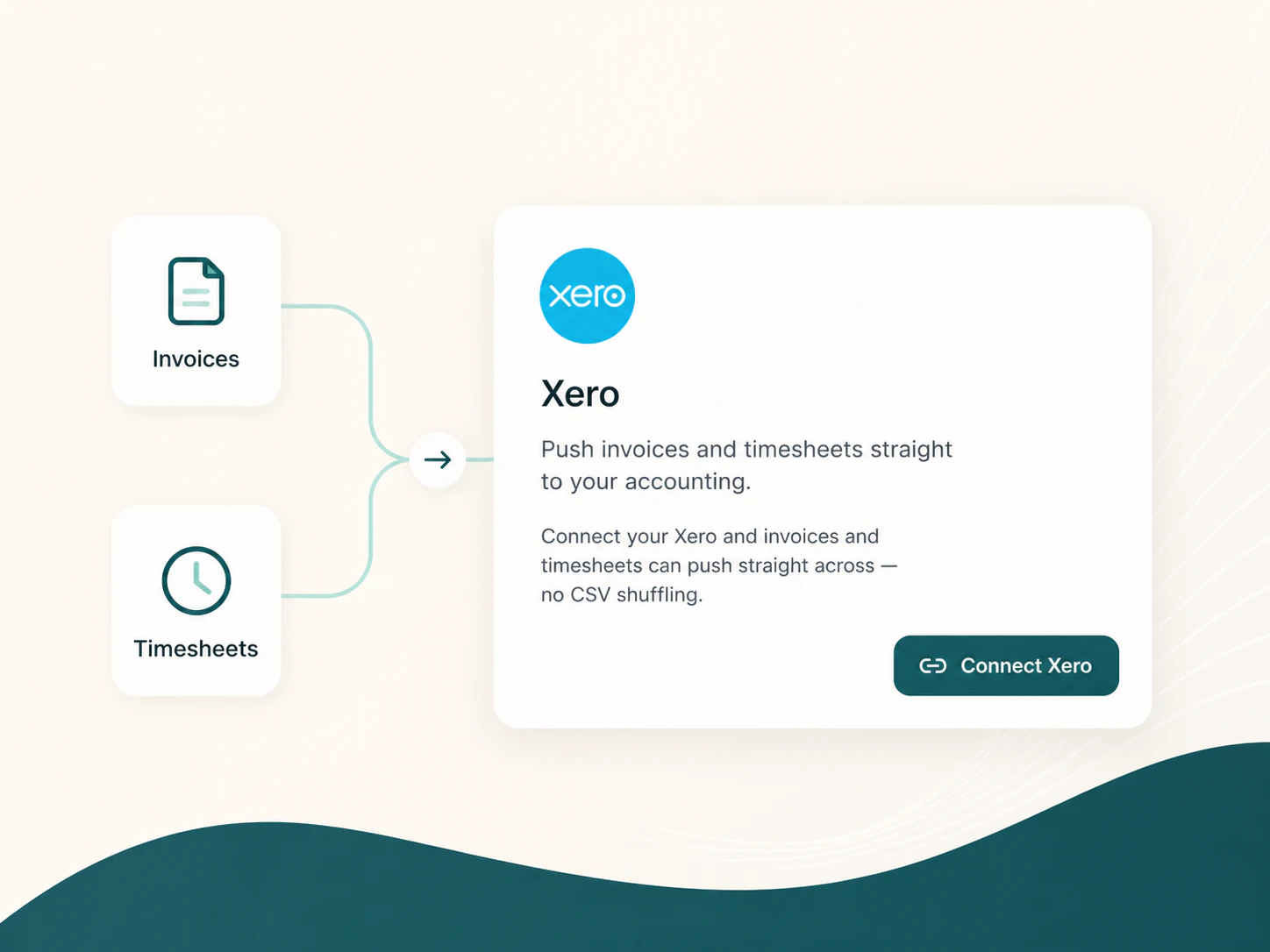
An invoice and a PRODA claim file are not the same thing, even though they start from the same approved shifts. Sparks Provider turns last week's approved work into invoices without retyping anything, and it creates a claim file you can upload to PRODA yourself for NDIA-managed participants. Emailing an invoice, sending it to Xero, and downloading the PRODA file are three separate actions, not one bundle. Nothing goes out until you choose it.
Set the invoice basics before the first run
- Go to Business then Invoicing and set your GST status, invoice numbering, payment terms and bank details.
- Add your NDIS registration number here too, since it is needed before PRODA downloads will work.
- Sparks never takes or moves the payment itself. It prepares the invoice and the claim file; the money still moves the way it already does for your business.
Approving a shift is what makes it billable
A shift becomes ready to invoice once it is approved for pay. For group or Advanced bookings, that means each worker's time is approved in Timesheets under Group bookings, with each participant charged the booked hours at the price guide ratio. This is also why the To do card on the Invoices screen is useful before you start a run. It adds up last week's approved shifts, flags how many participants need a fix first, and shows how many shifts are still waiting on approval, with a link to each.
Making invoices does not send anything yet
- Invoices then Make invoices opens on last week by default. For Last fortnight, Last month or your own dates, choose Back, or Other dates at the foot of the To do card.
- Next shows everyone with approved work in that range in one list, with anything needing attention first, such as a missing price or a missing billing email.
- Untick anyone you are not invoicing yet, then Make invoices. The button shows how many invoices and their total before you confirm.
- Making the invoices is the end of that step. The next screen asks how you want to send them, to Xero or by email, and the PRODA file is a separate download.
Where the PRODA file actually fits
After a run, Sparks Provider asks how you want to send them: Send to Xero as drafts, or Email from Sparks Provider to each billing email, one or the other so nobody gets the same invoice twice. NDIA-managed participants have one more step: download the PRODA file. NDIA claims on the Invoices To do card is separate from making invoices too: Download PRODA file picks up every NDIA invoice not in a file yet, and Download again is only for a file PRODA refused. A participant needs to be marked NDIA-managed, and your NDIS registration number needs to be set, before that download works. Sparks Provider builds the file for upload. It does not sign into PRODA or submit the claim on your behalf, so that part of the process still happens on your end.
A fictional Monday morning run
This is a fictional, anonymous example to show the flow, not a real business. Picture an admin person at a small support provider opening Invoices on Monday morning. The To do card shows fourteen approved shifts from last week, with one participant missing a billing email. They fix that address, run Make invoices for last week, check the list of fourteen names, and confirm. Asked how to send them, they choose Send to Xero, so the drafts wait there for the bookkeeper to check, then download the PRODA file for the NDIA-managed participants in that batch, ready to upload separately.
Things worth checking before you press go
- A missing price on any shift, which links straight to that shift so you can fix it before invoicing.
- A missing billing email, which is named on the Check who you are invoicing screen with a link to add it.
- Whether your NDIS registration number is set under Business then Invoicing, since PRODA downloads depend on it.
- Whether you have chosen a Xero sales account once under Business then Accounting software, so every Send to Xero uses the right one.
A note on corrections and deletions
Editing is available for eligible, newly issued GST-free invoices, with the original kept in History and a reason recorded for the correction. Invoices already sent to Xero, mid-delivery, or with an uncertain delivery history are protected rather than editable or deletable, so to redo one that is in Xero, use Void this invoice instead: it stays on file marked Voided and its shifts are ready to invoice again.
Common questions
The details people ask next.
Does Sparks Provider submit the PRODA claim for us?
No. It creates a claim file for NDIA-managed work that you download and upload to PRODA yourself. Sparks Provider does not sign into PRODA or submit claims on your behalf.
Can we send invoices to Xero without emailing them to participants first?
Yes. After a run, Sparks Provider asks how you want to send them: Send to Xero, or Email from Sparks Provider. Use one or the other, so nobody gets the same invoice twice. Drafts in Xero are approved and emailed from there.
What happens if a participant has no billing email when we run invoices?
They stay in the list with a link to add one. Everyone else with an email continues, so one missing address does not hold up the whole batch.
Can we fix an invoice after it has been sent to Xero?
Editing is limited to eligible, newly issued GST-free invoices. Invoices already sent to Xero or with an uncertain delivery history are protected from correcting. To redo one that is in Xero, except an NDIA-managed one, open it, choose Something wrong with it?, then Void this invoice: it stays on file marked Voided, its shifts are ready to invoice again, and in Xero a draft is deleted or an approved, unpaid invoice is voided.
This is general information, not financial or NDIS advice. NDIS pricing and claiming requirements can change, so check the current NDIA pricing arrangements and provider guidance before relying on it.